 Start creating
Kling 4.0 by Kuaishou is an AI video generator built around references: upload up to 10 photos and 5 videos, describe the scene and get a clip of up to 30 seconds with stereo sound. On Pixcloud you use Kling 4.0 online with nothing to install and no subscription, in standard 720p or pro 1080p.
Launch Kling 4.0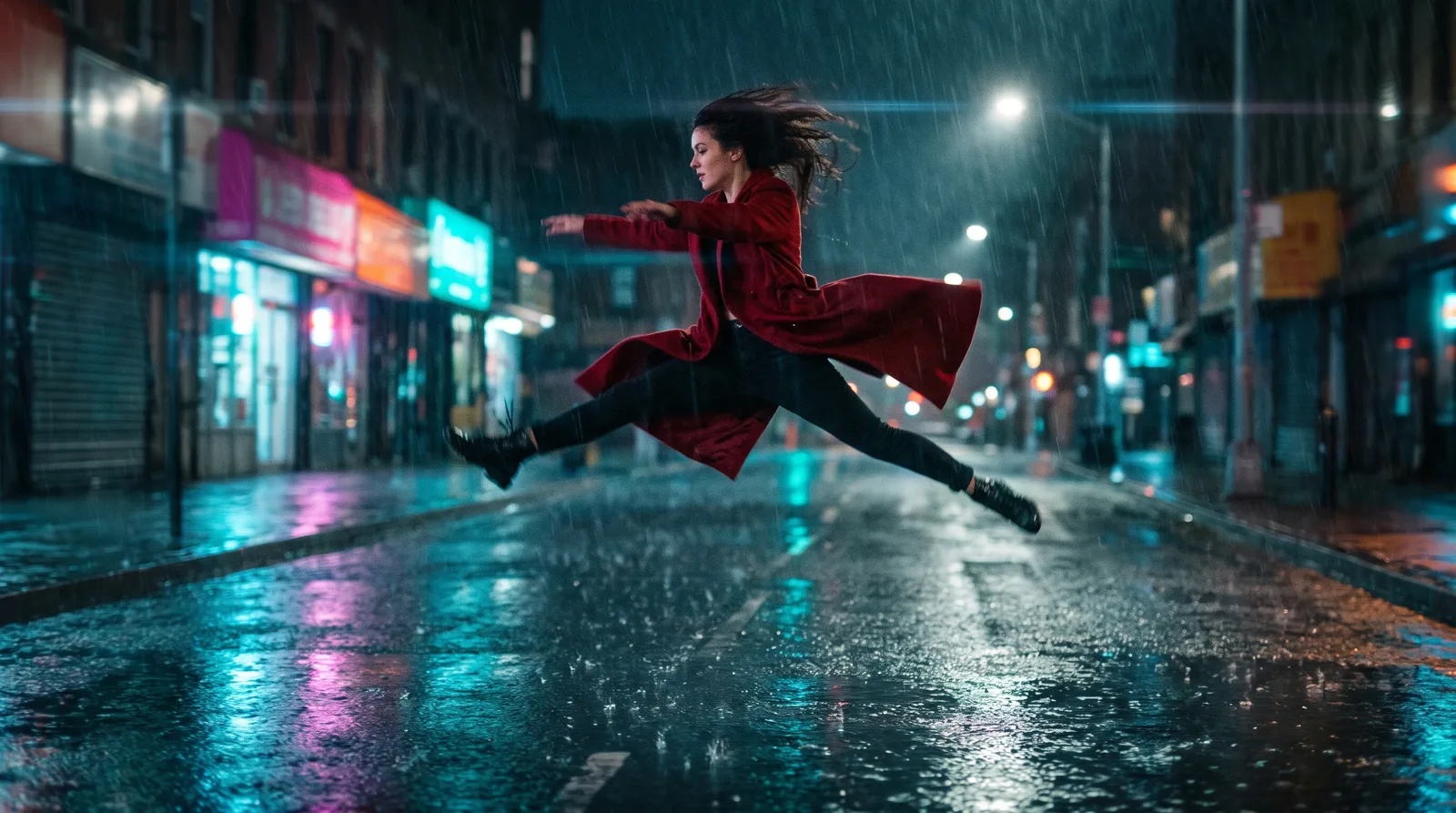
Kling 4.0 is a video model by Kuaishou, released in October 2026 as the successor to Kling 3.0. The maker builds it on three pillars: steadier large motion (dance, sport, fast camera moves), a single pass of up to 30 seconds instead of stitching short clips, and Omni Reference, meaning generation from many assets at once. Instead of one starting image you hand over a set of references: a character's look, a product, a set, even a piece of footage from which the model borrows motion and camera work.
On Pixcloud Kling 4.0 works in three modes. Text: a clip from a description alone. Image: a start frame and an optional end frame. References: up to 10 photos and up to 5 videos (each at least 3 s, 30 s in total), which you call in the prompt as @image_1 or @video_1. You set the length with a slider from 3 to 30 s, pick 16:9, 9:16, 1:1 or cinematic 21:9, and choose standard 720p or pro 1080p. Every result comes with a stereo track. The same engine powers Pixcloud Jujitsu, our tool for swapping characters in a video.
Pixcloud serves Kling 4.0 online in the browser and in the mobile app, paid with credits and with no subscription. You see the cost before pressing Generate, and the finished clip lands in your gallery next to your other generations. In practice a generation takes around fifteen minutes, so this is a tool for planned work rather than quick tests on the spot.
Up to 10 photos and up to 5 videos in one job. The model can take something different from each asset: face and build from one photo, an outfit from another, a product from a third, motion and camera language from a clip. You point to them in the prompt as @image_1 or @video_1, which keeps the character consistent through the whole clip. Note: Omni Reference in Kling 4.0 is not the same thing as the Gemini Omni model, which has its own page on Pixcloud.
Set the length with a slider from 3 to 30 s, billed in 5 second blocks. One generation instead of stitching six short clips, with the same character and the same light from start to finish. According to Kuaishou the model is built for long takes and continuous storytelling, so a 20 second spot does not have to be assembled from several shorter generations.
Image mode animates your photo and keeps its framing, colours and character. Add an end frame and the model steers the motion to finish exactly on it: handy for transitions between scenes, loops for ads and product animations built from two shots.
Upload a clip of 3 to 30 s and write what should change. "Edit @video_1" keeps the shot and swaps the chosen element, while "reference @video_1" builds a new scene with the same pace and camera motion. It works best with footage whose rhythm is close to what you want to get.
Every clip comes out with a stereo track: Kling generates its own audio or keeps the sound from your reference video if you tick the Audio option. Pro mode gives 1080p, standard gives 720p. Aspect ratios 16:9, 9:16, 1:1 and 21:9 for material in a cinematic format.
Kling 4.0 powers Pixcloud Jujitsu, our tool for swapping a character in a video with AI. Pick a preset effect from the library or upload your own clip, add 1 to 4 photos and get the same motion with a new person, outfit or product. Open pixcloud.app/jujitsu.
| Category | Kling 3.0 on Pixcloud | Kling 4.0 |
|---|---|---|
| Clip length | Up to 15 s | 3 to 30 s, billed in 5 second blocks |
| Reference videos | 1 clip up to 15 s, output of the same length | Up to 5 clips, each at least 3 s, 30 s in total |
| Prompt references | Scene description | @image_1 to @image_10 and @video_1 to @video_5, prompt up to 5000 characters |
| Aspect ratios | No 21:9 format | 16:9, 9:16, 1:1 and cinematic 21:9 |
| Audio | Native audio | Always stereo, with the option to keep the track from a reference video |
| Image quality | Standard and pro mode | Standard 720p, pro 1080p |
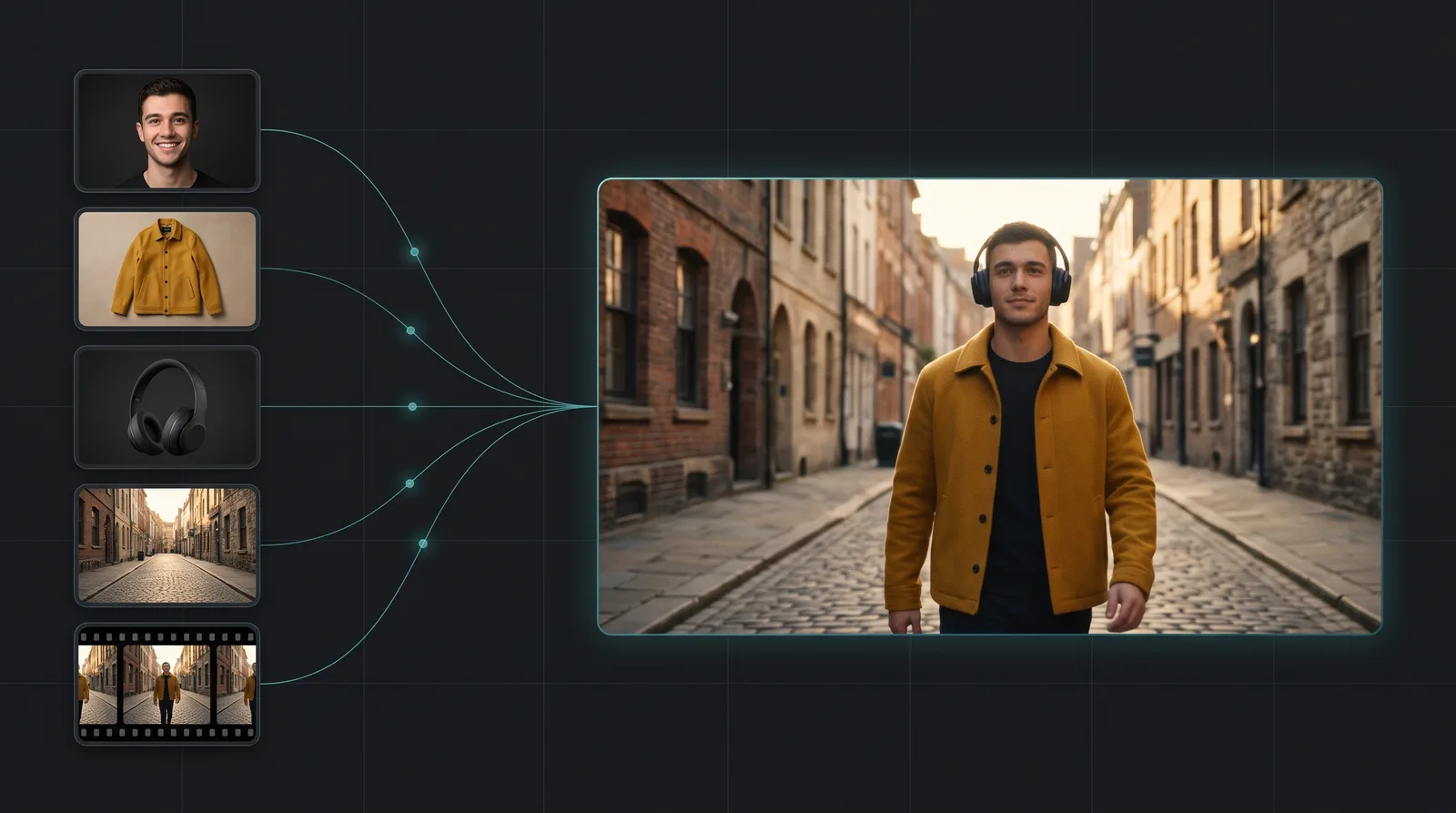
This is reference mode: photos of a person, a jacket and a product plus a short reference clip on the left, a frame from the result on the right. A prompt along the lines of: @image_1 wearing the jacket from @image_2 holds @image_3 and walks down the street like the person in @video_1.
Sign up on Pixcloud with your email or a Google account, with nothing to install. A new account gets a pool of free credits for the first tries. After that you top up credits when you need them: no subscription, no monthly cap, and the same credits work in every video, image and music model on Pixcloud.
Open video creation and choose Kling 4.0 from the model list. Pick a mode: text, image (start and end frame) or references. Add up to 10 photos and up to 5 videos, set the length from 3 to 30 s, the aspect ratio and standard or pro quality. Write the prompt as one sentence: who, where, what they do and with what emotion, with @image_1 and @video_1 references. For example: @image_1 in a red coat walks down a rainy street at night, the camera follows her, calm mood. Tick Audio if you want to keep the track from your own clip. The credit cost shows on the Generate button, and the clip appears in your gallery after around fifteen minutes.
Kling 3.0 on Pixcloud makes clips of up to 15 seconds and accepts one reference video of up to 15 s. Kling 4.0 extends the output to 30 seconds in a single pass, accepts up to 10 photos and up to 5 reference videos (30 s in total), adds the cinematic 21:9 format and always returns stereo sound. According to the maker the model handles large motion more steadily, for example dance, sport and fast camera moves. Kling 3.0 stays on Pixcloud and is still enough for short clips with a single reference.
From 3 to 30 seconds: the slider moves in 1 s steps and the cost is counted in 5 second blocks. If you add reference videos, the output will not be longer than their combined length; the slider sets itself to that sum and you can only shorten it. In Pixcloud Jujitsu the output has the length of the reference clip or of the fragment you pick from it. Reference videos must be at least 3 s each and 30 s in total at most, otherwise the job is rejected before pricing.
You write the prompt in any language you like and the Pixcloud interface is available in English, Polish and Czech. For spoken lines and lip sync Kuaishou lists Chinese, English, Japanese, Korean, Spanish, Portuguese, German, French and Hindi, plus a few accents and dialects; Polish and Czech are not on that list. Scenes without spoken lines, with music and ambient sound, work the same regardless of language; treat dialogue in an unlisted language as an experiment and check the result before you publish it.
There are two ways. The simpler one is Pixcloud Jujitsu at pixcloud.app/jujitsu: pick a preset effect from the library or upload your own clip of 3 to 30 s, add 1 to 4 photos of a person, outfit or product, optionally add a short note and press Generate; motion, framing and aspect ratio stay from the reference clip. The second way is Kling 4.0 reference mode in video creation: upload the clip as @video_1, the photo as @image_1 and write: replace the person in @video_1 with the person from @image_1, leave everything else unchanged. Head turns, close shots and moments when the face is covered are harder, so choose shots where the character is clearly visible. Use another person's likeness only with their consent.
Standard gives 720p and costs fewer credits: enough for tests, scene drafts and vertical clips for the phone. Pro gives 1080p and costs more: choose it for ads, material for a big screen, shots with fine detail and the version you publish. Generation time is similar in both modes, around fifteen minutes, so a sound habit is a test in standard and only then the final in pro with the same prompt and references. The exact credit count shows on the Generate button before you start.
Kling 4.0 for credits, with no plan and no monthly caps. You see the cost before pressing Generate and pay only for the clips you actually generate.
Kling 4.0, Kling 3.0, Kling Motion, Veo, Seedance, Wan and Sora 2 on one account, in the browser and in the mobile app, with one shared gallery.
Technical support and guides. Whether you are refining a prompt with references or setting up a workflow for an agency, we are here.